User manual
Otkucaj version 1.3.6 · otkucaj.com · Download the PDF
Everything this document says about the regulations is our understanding, not legal or tax advice; check with your accountant or the Tax Administration before you act.
Contents
- 1.About the program
- 2.Glossary
- 3.Requirements and installation
- 4.Signing in and roles
- 5.The till screen
- 6.Issuing a receipt, step by step
- 7.Barcode scanner
- 8.Payment methods
- 9.Refunds
- 10.Voiding an incorrect receipt
- 11.Copy of a receipt
- 12.Pro-forma and conversion to a fiscal receipt
- 13.Advances
- 14.Training receipts
- 15.Receipt register (electronic journal), sending and downloading
- 16.Items
- 17.Reports
- 18.Settings
- 19.Working without internet
- 20.Integrations: API and WooCommerce
- 21.Security and data retention
- 22.Troubleshooting
- 23.Frequently asked questions
- 24.Support
- 25.Forbidden functions and the limits of the application
- 26.Index: the Tax Administration questionnaire, item by item
1.About the program
Otkucaj is an electronic invoice issuing system (ESIR) within the meaning of the Law on Fiscalization. It runs as a web application in a browser, on a computer, a tablet or a phone, with no separate program to install. Before a receipt is issued it is forwarded to a fiscal invoice processor (PFR), which fiscalizes it: assigns it a number, a counter and a digital signature. Otkucaj works with a local PFR (L-PFR), with the Tax Administration's virtual PFR (V-PFR), and, for demonstration and training, with a built-in demo PFR simulator.
Otkucaj supports every receipt and transaction type prescribed by the Tax Administration's Technical Guide:
| Receipt type | Transactions | Fiscal receipt | Counts as turnover | Note |
|---|---|---|---|---|
| Normal (Промет) | Sale, Refund | Yes | Yes | The basic receipt for the supply of goods and services. |
| Advance (Аванс) | Sale, Refund | Yes | Yes | Records payments received before delivery (chapter 13). |
| Pro-forma (Предрачун) | Sale, Refund | No | No | A quote for the buyer; prints "ОВО НИЈЕ ФИСКАЛНИ РАЧУН". |
| Training (Обука) | Sale, Refund | No | No | Staff practice; prints "ОВО НИЈЕ ФИСКАЛНИ РАЧУН". |
| Copy (Копија) | Sale, Refund | No | No | Issued afterwards, either from a receipt that already exists or by choosing this type at the till; a referent number is mandatory (chapter 11). |
Besides the till, Otkucaj includes a register of issued receipts, an item catalogue with import and export, turnover reports, users with roles, an activity log, an API for integrations and a WooCommerce plugin. The application also works without internet as an installable PWA (chapter 19).
1.1 What Otkucaj is, and what it is not
This chapter exists so that there is no confusion, either for users or before the Tax Administration. An electronic fiscal device consists of three elements: the ESIR, the PFR and the security element. Without all three, a fiscal receipt cannot be issued.
| Element | Is that Otkucaj | Explanation |
|---|---|---|
| ESIR | Yes | Otkucaj is an ESIR. It collects lines, discounts, payments and buyer details, assembles the request and sends it to the PFR, then displays and prints the receipt the PFR returns. |
| PFR | No | Otkucaj does not fiscalize receipts. It does not calculate the final tax on its own, does not assign the PFR number or the counter, and does not sign the receipt. Only the PFR does that. |
| L-PFR | No | A local PFR is a separate program installed at the taxpayer's premises, working with the security element in a card reader. It has its own approval from the Tax Administration and its own registration number, separate from the ESIR's. Otkucaj connects to it, but does not replace it and does not contain it. |
| Security element | No | The Tax Administration issues the security element to the taxpayer. With an L-PFR it is usually a smart card in a reader at the location, and Otkucaj does not access it. With a V-PFR the security element is a file (.pfx or .p12) that the taxpayer installs in Otkucaj and with which Otkucaj identifies itself to the V-PFR (chapter 18.3). |
Three things follow from that, and they are worth remembering:
- Approval is sought per element. The ESIR and the L-PFR are two separate applications, two decisions and two registration numbers. An approved ESIR does not mean an approved L-PFR, nor the other way round.
- The connection method is part of what gets approved. Under the Technical Guide, an ESIR talks to an L-PFR over HTTP on the local network, and to a V-PFR over HTTPS with a PAC. Otkucaj supports both, but when choosing an ESIR the taxpayer should check which connection method that ESIR is approved for.
- A local queue is not offline fiscalization. If the connection drops, Otkucaj keeps the receipt in a local queue on the device, and at that point it is not fiscalized and has no fiscal validity. It is fiscalized only once a connection to the PFR is established. Genuine signing of receipts without internet is possible only with an L-PFR, because it signs locally using the security element. Details in chapter 19.
As we understand art. 6 para. 4 of the Law on Fiscalization, a taxpayer who uses a V-PFR must keep at least one L-PFR working in every business premises that has a unique premises code (JID). The exceptions are retail sales made exclusively online and sales of the taxpayer's own used movable assets: then a V-PFR is enough, and a permanent connection is a condition of working anyway.
2.Glossary
| Term | Meaning |
|---|---|
| ESIR | Electronic invoice issuing system, that is, this program. It takes lines and payments, sends the request to the PFR and prints or sends the receipt. |
| PFR | Fiscal invoice processor. It fiscalizes every receipt: calculates tax at the rates in force, assigns the PFR number, the counter and the signature, and keeps the data for the Tax Administration. |
| L-PFR | Local PFR: a device or program at the taxpayer's premises (on the same computer or on the local network). It signs receipts without internet as well. |
| V-PFR | Virtual PFR: the Tax Administration's cloud service. It requires a permanent internet connection and access through a PAC. |
| Security element | A smart card (or a file) the Tax Administration issues to the taxpayer. The PFR signs receipts with it. |
| SUF | The Tax Administration's fiscalization management system. At suf.purs.gov.rs a buyer verifies any fiscal receipt. |
| Journal | The textual content of the receipt, 40 characters per line, in Cyrillic. It is what gets printed, e-mailed or downloaded as text. |
| JID | The unique identifier of the security element. It forms part of the PFR receipt number. |
| PAC | A six-character code tied to the V-PFR digital certificate, which the taxpayer chooses when requesting the certificate from the Tax Administration; the ESIR sends it with every request to the V-PFR. |
| Demo mode | A built-in PFR simulator for demonstration, training and testing. Receipts carry the mark ДЕМО, are not fiscal and are not reported to the Tax Administration. |
3.Requirements and installation
3.1 Browsers and devices
Otkucaj runs in every modern browser: current versions of Chrome, Edge, Firefox and Safari. We recommend Chrome or Edge because installing the application and printing work best there. JavaScript must be enabled. The till screen suits a computer, a tablet and a phone alike.
3.2 Installing as an application (PWA)
Otkucaj is an installable progressive web application: it gets its own icon, opens in its own window and keeps the item catalogue locally, so the till opens without internet.
| Device | What to do |
|---|---|
| Windows, Chrome or Edge | Open otkucaj.com, click the "Install" icon in the address bar, or use the browser menu and "Install app" (in Edge: Apps, then "Install this site as an app"). The application gets a shortcut in the Start menu. |
| Android | Open the site in Chrome, use the three-dot menu, then "Install app" (or "Add to Home screen"). The Otkucaj icon appears among your apps. |
| iPhone and iPad | Open the site in Safari, tap Share, then "Add to Home Screen". |
The Install app button also appears on the site's front page (top bar), in Settings under About, and as the last step of the first-run guide (chapter 5): clicking it starts the same installation as in the table above.
3.3 Setting up a thermal printer
- Install the printer in the operating system with the manufacturer's driver and set the paper width: a 58 mm or 80 mm roll.
- In the browser's print dialog (Ctrl+P) set: margins: None, Scale: 100%, paper size: your 58 or 80 mm roll, and turn off headers and footers.
- Print a test receipt from demo mode and check that the journal fits the paper width and that the QR code scans with a phone camera. The QR code prints between 40 and 50 mm; 45 mm by default.
Printing also works on an ordinary A4 printer: the journal prints in the same form, and the rest of the screen does not print because printing is isolated to the receipt alone.
The supported paper sizes are the 58 mm and 80 mm rolls and the A4 sheet. The narrowest roll supported is 58 mm, at a receipt width of 32 characters. Rolls narrower than 57 mm are not supported: the journal in the layout of the Technical Guide does not fit into fewer characters per line, so lines would break.
3.4 Two ways to run: over the internet, or locally on the premises
Otkucaj can be used in two ways. Both are intended and both use the same program; they differ in where the ESIR is installed and which PFR it connects to.
| Running over the internet | Running locally on the premises | |
|---|---|---|
| Where the ESIR runs | On our server, opened at otkucaj.com | On a computer at the taxpayer's premises or a server on the local network |
| PFR | The Tax Administration's V-PFR, over HTTPS with a PAC | An L-PFR on the premises, over HTTP on localhost or an address on the local network |
| Internet required | Yes, permanently | Not for issuing receipts. The L-PFR signs locally using the security element and sends the data to the Tax Administration as soon as a connection exists, and no later than 5 days from the day each receipt was issued. |
| When it makes sense | Selling exclusively online, where a connection is a condition of working anyway | A shop, where the connection sometimes drops but work must not stop |
What a local installation needs
- A computer running Windows or Linux, with PHP 8.3 or newer and MySQL 8 or MariaDB 10.6 or newer.
- An L-PFR, separately approved by the Tax Administration, installed on the same computer or the same network, with a card reader and the security element. The L-PFR is not part of Otkucaj (see chapter 1).
- A copy of the program and the database. Installation and initial setup are done by the supplier.
Settings for working without internet
After installation, the following is set in the configuration file and in Settings:
- The application address is set to a local address, for example http://localhost:8080 or the address of the computer on the network. That keeps every link inside the application on the local network.
- The PFR mode is set to L-PFR, and the L-PFR address to the one its supplier gave you, most often http://localhost:8888. The connection status is shown at once in Settings.
- The sign-in check (Cloudflare Turnstile) is turned off, because it needs internet. Signing in still requires a username and a password.
- E-mailing receipts only works when there is a connection. Printing and downloading the journal always work.
4.Signing in and roles
- Open https://otkucaj.com and click Sign in.
- Enter the username and password you received from your administrator.
- After signing in, the till screen opens.
After 8 wrong attempts in a minute, signing in is temporarily locked. A forgotten password is reset by the administrator under Settings, Users.
Stay signed in. The sign-in form has a Stay signed in on this device box, ticked by default. Leave it on for the till in the shop: you sign in once and stay signed in, even after the computer is restarted. Turn it off on someone else's or a shared computer. You can end it everywhere at any time under Settings, Users, with the Sign me out everywhere button; changing a password or deactivating an account does the same automatically.
| Role | Rights |
|---|---|
| Cashier | Issuing receipts at the till, viewing receipts and acting on them (copy, refund, e-mail), viewing items. |
| Administrator | Everything a cashier can do, plus: editing items and import/export, reports, settings (taxpayer details, environment and PFR mode, payment mode, tax labels), users and roles, API keys, the activity log. |
The cashier's name is written on every receipt issued, and every action is recorded in the activity log.
Registration and account approval
A new taxpayer can open an account themselves on the Registration page; there is a link to it from the sign-in page as well. The form asks for: business name, TIN, registration number (matični broj), a Serbian phone number, e-mail, username and a password of at least 10 characters.
- The account is created inactive: signing in is not possible until an administrator approves it under Settings, Users.
- If Telegram notifications are configured (chapter 18), the administrator is notified of the new registration immediately.
- Once activated, the user signs in as usual, with their username and password.
Sign-in protection: Cloudflare Turnstile
The sign-in and registration forms are protected by a Cloudflare Turnstile check. The check is invisible: it asks for no puzzles and no characters to retype, and most often completes on its own in a fraction of a second. If the checking service is temporarily unavailable, signing in goes through anyway, so nobody can be locked out by a third party's outage.
5.The till screen
The till is split in two: item selection on the left, the basket with payments and the issue button on the right.
On the first sign-in the application shows a short five-step guide: the basics of the till, tabs for open receipts, receipt types and payments, issuing and printing, and finally installing the application. The guide can be reopened at any time: Settings, Taxpayer details, About, the Guide button.
Along the left edge of the screen is the sidebar with the main menu. The Collapse menu row at its bottom narrows the sidebar to icons, giving the till more room; clicking again restores the full width. The choice is remembered per device.
Searching and choosing items
- Search: type a name, PLU or barcode; the list narrows as you type. Enter confirms the entry: if the text you typed matches a PLU or GTIN exactly, the item is added to the basket at once (scanner behaviour, chapter 7). If a typed or scanned code matches no item, the item list answers that there is no match, and what you entered stays in the box so it can be corrected.
- Categories: below the search are the category buttons (for example Drinks, Food). Clicking one filters the item grid to that category; clicking again brings everything back.
- The item grid: clicking an item tile adds one unit to the basket.
- Free entry: for goods or a service that is not in the catalogue, open "Free entry" and type in the name, price and tax label. The line goes into the basket like any other.
- Tax labels: below the item selection is a collapsible Tax labels panel. Opening it lists every label in force, the name of the tax category beside each and the rate. A cashier can read them there at any time, and it is the only place they can: Settings is opened by an administrator only. It shows the same list that applies on the receipt, and that list comes from the PFR, never from the application (chapter 18.6).
Several open receipts
Above the basket are the tabs for open receipts. The + button opens a new empty receipt, and clicking a tab moves you from one customer to another, for example when a cashier is serving several tables or when one customer steps aside. All open receipts are kept locally on the device and survive a page reload and closing the browser; they are cleared only by issuing them or closing the tab by hand.
The basket
- Quantity: changed with the − and + buttons or by typing. Decimals are supported, for example 0.375 for 375 grams.
- Price: the unit price of each line can be changed directly in the basket (for example for goods with a marked promotional price).
- Discount per line: every line has a percentage discount field; the line total is recalculated at once.
- Discount on the whole receipt: enter a percentage for the whole receipt and Otkucaj distributes it across every line, so the sum of the lines still matches what the PFR calculates.
- Removing a line: every row in the basket has a × button in its top right corner and is removed on its own, leaving the other lines untouched. A line also disappears when you take its quantity down to zero. Lines can be removed for as long as the receipt has not been issued; after issuing, a receipt is not changed but reversed (chapter 10).
- Advance lines: buttons for the prescribed advance lines (chapter 13).
The fields beside the receipt
- Receipt type (Normal, Advance, Pro-forma, Training, Copy) and transaction type (Sale, Refund). A copy of a receipt held in this installation is normally issued from the receipt itself, in the register, and the referent number is filled in for you. The Copy type is chosen here when the original is not in this installation, for example when the receipt was issued on another device: the referent number is then typed by hand, and without it the receipt cannot be issued (chapter 11).
- Buyer ID: buyer identification in the form code:value (table in chapter 9). Mandatory on a refund, and also entered when a buyer asks for a receipt carrying their TIN.
- Buyer cost centre (Опционо поље купца): the mark of a document that states more precisely what the receipt is for, also in the form code:value (at most 20 characters). Entered only when it is needed, and then printed on the receipt below the buyer ID. Most often: 50: a corporate card number (the payment method is then always Voucher), 30: a ППО-ПДВ certificate number, 20: an СНПДВ form number, 60:ddmmyyyy_ddmmyyyy the calendar month on a summary refund of corporate-card sales.
- Advertising text: free text printed below the end of the receipt (for example "Thank you"); when closing an advance, the number and date of the advance receipt appear here automatically.
- ESIR time: the date and time an advance was paid, when it was paid by bank transfer before the day the Advance Sale receipt is issued. As we understand art. 11 of the Rulebook on types of fiscal receipts, such a receipt is issued no later than the next working day after the payment is received (chapter 13). ESIR time is not a way to issue a sales receipt after the fact.
- Payments: payment rows with an automatic "remainder" field (chapter 8).
6.Issuing a receipt, step by step
- Find the items by searching, scanning or clicking, and add them to the basket.
- Adjust quantities and prices if needed, and enter any discounts.
- Check the receipt type (for an ordinary sale: Normal, Sale).
- Enter the buyer ID, the buyer cost centre and the advertising text if needed.
- Choose the payment method; for a split payment, add more rows (chapter 8).
- Click Issue receipt. Otkucaj sends the request to the PFR and then shows the journal with its QR code.
- Click Print to print, or e-mail the receipt (chapter 15).
A worked example
A customer takes 2 Coca-Colas at 180.00 (label Ђ, 20%) and one loaf of bread at 89.99 (label Е, 10%). A 10% discount is given on the Coca-Cola. The customer pays 100.00 in cash and the rest by card.
| Line | Qty | Price | Discount | Amount |
|---|---|---|---|---|
| Coca-Cola (Ђ) | 2 | 180.00 | 10% | 324.00 |
| Bread (Е) | 1 | 89.99 | 89.99 | |
| To pay | 413.99 | |||
Payment: cash 100.00; as soon as you enter that, the "remainder" field shows 313.99, so you add a row "payment card 313.99". The tax summary on the receipt (calculated by the PFR):
| Label | Rate | Base | Tax |
|---|---|---|---|
| Ђ | 20% | 270.00 | 54.00 |
| Е | 10% | 81.81 | 8.18 |
| Total tax | 62.18 | ||
What an issued receipt contains
The journal is formatted to 40 characters per line, in Cyrillic, in the layout of the Technical Guide, and contains, in order:
- the taxpayer's TIN, business name, and the name and address of the point of sale;
- the cashier's name, the buyer ID if one was entered, and the ESIR number (the number from the register of approved ESIRs, chapter 18);
- the receipt and transaction type (for example ПРОМЕТ ПРОДАЈА);
- the lines: name, quantity, unit price, amount and tax label;
- the line carrying the total of the receipt, and the payment rows by method;
- the tax summary by label: Ђ 20%, Е 10%, Г 0%, А outside VAT; the rates always come from the PFR, never from the application;
- the PFR time, the PFR receipt number in the form JID-JID-serial and the counter, for example 143/302ПП: the 143rd Normal Sale receipt out of 302 receipts in total;
- the QR code and the verification link; the printed QR code is between 40 and 50 mm (45 mm by default);
- after the end of the receipt: the advertising text, if one was entered.
Copy, Pro-forma and Training receipts print "ОВО НИЈЕ ФИСКАЛНИ РАЧУН" at double letter size. In demo mode that applies to every receipt type, a Normal Sale included: the demo simulator has no PFR, so no document it produces is a fiscal receipt (chapter 25).
6.1 The elements of a fiscal receipt, field by field
Below is the whole journal of one real receipt, exactly as the PFR signed it and as it prints, 40 characters wide. The receipt was issued in the Tax Administration's test environment (chapter 18.1), so the taxpayer's details read as they are registered in that system: the point of sale is registered there under the same name as the taxpayer, which is why that line repeats, and the town reads NOT APPLICABLE because it is not filled in there. The tax labels and rates are the test system's as well, not the Serbian ones. None of this is written by the application: the header, the tax summary and the fiscal metadata come from the PFR's answer and are shown as they were received (chapter 25).
============ ФИСКАЛНИ РАЧУН ============
RS112978955
Saša Mihajlović pr Računovodstveni poslovi TEFIS Vlasotince
Saša Mihajlović pr Računovodstveni poslovi TEFIS Vlasotince
Hajduk Veljka 9
NOT APPLICABLE
Касир:                  Филип Михајловић
ИД купца:                   10:112978955
Опционо поље купца:        50:6600123456
ЕСИР број:                    1667/1.3.6
-------------ПРОМЕТ ПРОДАЈА-------------
Артикли
========================================
Назив   Цена         Кол.         Укупно
Кафа еспресо /ком (Ж)
       220,00          2          440,00
Хлеб бели 500г /ком (A)
        89,99          1           89,99
----------------------------------------
Укупан износ:                     529,99
Ваучер:                           529,99
========================================
Ознака       Име      Стопа        Порез
Ж             VAT   19,00%         70,25
A             VAT   10,00%          8,18
----------------------------------------
Укупан износ пореза:               78,43
========================================
ПФР време:          16.09.2026. 12:51:21
ПФР број рачуна:    25MLSU5E-Dt1Ov2o0-22
Бројач рачуна:                   16/22ПП
========================================
======== КРАЈ ФИСКАЛНОГ РАЧУНА =========
The table below names every element of the receipt by the mark it carries in the Tax Administration's questionnaire for the administrative and technical review of an ESIR, section 16, and states how that element looks on paper, where it comes from and when it is shown. Rows that are not visible in the specimen above appear only on certain receipt types and are given here in the form in which they print.
| Item | Element | How it looks on the receipt | Where it comes from and when it is shown |
|---|---|---|---|
| 16.П1 | The title line opening the fiscal part | ============ ФИСКАЛНИ РАЧУН ============ | The first line of every fiscal receipt; the PFR writes it. On Copy, Pro-forma and Training receipts the message from row 16.П10 stands in its place. |
| 16.П2 | The header with the issuer's details | Five lines below the title line: TIN, taxpayer, point of sale, address and town | The PFR assembles them during fiscalization and returns them to the ESIR in its answer. Otkucaj prints them as it received them and does not replace them with its own settings (chapter 25). The same details are also entered under Settings, Taxpayer details (18.4), and must match the business-premises details you reported to the Tax Administration. |
| 16.П3 | Identification of the cashier | Касир: Филип Михајловић | The name of the user signed in at the till (chapter 4). It stands on every receipt type and every transaction type. |
| 16.П4 | Buyer ID and the buyer cost centre | ИД купца: 10:112978955 Опционо поље купца: 50:6600123456 | Entered at the till, in the form code:value (chapter 5; the code list of identifications is in chapter 9). The buyer ID is mandatory on a refund and on every transaction where the buyer identifies themselves. The optional field is entered only when it is needed, and then stands directly below the buyer ID, at most 20 characters. |
| 16.П5 | ESIR number and ESIR time | ЕСИР број: 1667/1.3.6 ЕСИР време: 15.09.2026. 9:15:00 | The ESIR number is the registration number of the approved ESIR and the software version, joined by a slash; it stands on every receipt type and every transaction type. The specimen carries the registration number 1667, which the Tax Administration assigns in the approval procedure (18.4); production refuses the reserved value 000. The ESIR time is printed on an Advance Sale receipt when the advance was paid before the receipt was issued, that is, when it differs from the PFR time (chapter 13). |
| 16.П6 | Referent number | Реф. број: 25MLSU5E-Dt1Ov2o0-31 Реф. време: 16.09.2026. 12:51:26 | The PFR number of the receipt this one refers to, in the form JIDRequest-JIDSignature-Serial. Mandatory on a Copy and on a Refund, and on a Normal Sale receipt that follows an Advance Refund; under art. 11 of the Rulebook on types of fiscal receipts the reference is also shown when a sale follows a pro-forma or is paid by an advance, and Otkucaj fills it in those flows by itself (chapters 12 and 13). The prescribed fallback forms, for when there is no original fiscal receipt, are in chapter 9. |
| 16.П7 | Receipt type and transaction type | -------------ПРОМЕТ ПРОДАЈА------------- | The line between the header and the item list. All five receipt types and both transaction types are listed in the table in chapter 1. The same mark is repeated in the receipt counter (row 16.П11). |
| 16.П8 | The item list | Кафа еспресо /ком (Ж) 220,00 2 440,00 | The first line of a line item carries the name, the division sign and the unit of measure, then the tax label in brackets; the second line carries the unit price, the quantity and the amount for that item. The unit of measure is a mandatory field of an item and is always printed; for piece goods and single services it is ком. Quantities are kept to three decimals, amounts to two (18.6.1). The GTIN is an optional part of a line: if one is entered against the item, it is sent to the PFR in the fiscalization request (chapter 16). |
| 16.П9 | Total, change, tax per label, total tax and the payment methods | Укупан износ: 529,99 Ваучер: 529,99 Ж VAT 19,00% 70,25 Укупан износ пореза: 78,43 Повраћај: 412,12 | The ESIR sends the line amounts and the PFR calculates the tax; this whole part of the receipt is written and signed by the PFR. On a refund the line Укупна рефундација stands instead of Укупан износ. Payments print one row per method, and the same method may appear more than once (chapter 8). The V-PFR does not print the Повраћај line, so Otkucaj writes it into the payment block, right after the last payment line, inside the receipt frame, where the Technical Instruction's example shows it (chapter 25); change does not count as turnover. |
| 16.П10 | The message that the receipt is not a fiscal one | ======== ОВО НИЈЕ ФИСКАЛНИ РАЧУН ======= | On Copy, Pro-forma and Training receipts, at a letter size at least twice that of the rest of the receipt. It appears three times: in place of the opening title line, between the payments and the tax summary, and in place of the end line (chapters 11, 12 and 14). |
| 16.П11 | The PFR's fiscal metadata | ПФР време: 16.09.2026. 12:51:21 ПФР број рачуна: 25MLSU5E-Dt1Ov2o0-22 Бројач рачуна: 16/22ПП | Created during fiscalization. The PFR number is the unique identification of the receipt in the whole system, and the PFR time is the official time of issue used when calculating tax and building reports. The counter in the specimen reads: the 16th Normal Sale receipt (mark ПП) out of 22 receipts in total. A receipt is found in the register by its PFR number and by its counter (15.1). |
| 16.П12 | QR code | A square inside the receipt frame: above the end line, right after the PFR metadata block | The PFR draws the image itself and Otkucaj prints that one; it draws its own only in demo mode, where there is no PFR to ask. It carries the verification address, the internal data and the signature. Its side is 41 mm on the 58 mm roll and 45 mm on the 80 mm roll, which is inside the prescribed 40 to 50 mm (chapter 3). When a receipt is delivered electronically, that address replaces the QR code, as a hyperlink the buyer can click (15.2). |
| 16.П13 | The title line closing the fiscal part | ======== КРАЈ ФИСКАЛНОГ РАЧУНА ========= | The last line of the fiscal part; the PFR writes it. Anything printed below it is not considered part of the fiscal receipt. On non-fiscal types the message from row 16.П10 stands in its place. |
| 16.П14 | The advertising field | A blank line, then free text, below the end line | Entered at the till, in the Advertising text field (chapter 5), and printed only below the end line, never inside the fiscal part. When an advance is closed, Otkucaj writes the number and date of the advance receipt into it by itself (chapter 13). The buyer's signature line on a Copy Refund (chapter 9) and the Повраћај row (row 16.П9) do not stand here but inside the receipt frame. |
6.2 The receipt as a document on A4 and A5
From version 1.3.6 a receipt printed on a sheet of paper is not the journal but a document. The roll is unchanged: there the journal signed by the PFR still prints character for character. The difference is that a journal makes sense on a 40 character strip, while on A4 or A5 it leaves eight tenths of the sheet empty, and a receipt that travels with a parcel, as an e-mail attachment or into the accounts most often travels exactly that way.
A receipt shaped like that is foreseen by the Technical guide. Its „Mapping“ chapter says that an ESIR which does not print the journal but a custom designed receipt must use the prescribed element map, that is, take every value from the fiscalisation request and from the PFR response. Otkucaj does exactly that: no value on the document is invented by the application, no amount is recalculated and no element from section 16 of the Technical instruction is left out.
| Item | Where it sits on the document |
|---|---|
| 16.П1 | The title ФИСКАЛНИ РАЧУН at the top of the sheet, with the PFR number and PFR time beside it. On Copy, ProForma and Training the message of row 16.П10 stands in its place. |
| 16.П2 | The Seller block, left below the title: taxpayer, PIB, address and town, in the order the PFR returned them. |
| 16.П3 | The Cashier field, in the row of fields right of the seller block. |
| 16.П4 | The Buyer ID and Buyer optional field, in the same row of fields; shown only when the receipt carries them. |
| 16.П5 | The ESIR number field, and the ESIR time field on an Advance Sale when it differs from the PFR time. |
| 16.П6 | The Referent number and Referent time fields, next to the previous ones; shown only when the receipt has a reference. |
| 16.П7 | Invoice type and transaction type, as a line across the full width immediately above the item table, in the wording the PFR returned. |
| 16.П8 | The item table: name with the unit of measure, tax label, price, quantity, total, and the GTIN below the name when the article carries one. |
| 16.П9 | Two cards side by side: Payment (total, one row per payment method, and the Change row when there is one) and Tax (label, name, rate, tax per label and the total tax). |
| 16.П10 | On Copy, ProForma and Training: the message THIS IS NOT A FISCAL RECEIPT instead of the title and instead of the closing line, in a font size at least twice the largest other text on the sheet. |
| 16.П11 | Three fields in one row below the cards: PFR time, PFR receipt number and receipt counter. |
| 16.П12 | The QR code, centred below the PFR metadata and above the closing line, that is, inside the frame of the receipt. Its side is 45 mm, within the prescribed 40 to 50 mm, on both formats. |
| 16.П13 | The closing line КРАЈ ФИСКАЛНОГ РАЧУНА. Nothing belonging to the fiscal receipt stands below it. |
| 16.П14 | The advertising field, below the closing line; in the same space, at the foot of the page, stands a line with the product name, the installation's serial number and the version, which is not part of the fiscal receipt. The buyer's signature on a Copy Refund stands inside the frame, above the closing line. |
Both formats carry the same layout and differ only in type size and spacing, so that the receipt fits on one sheet on A5 as well. Measured on the PDF the server produces: A4 sheet 209.9 × 297.0 mm, A5 sheet 148.2 × 209.9 mm, QR code 45.0 × 45.0 mm on both, read with a decoder and compared against the verification address stored with the receipt.
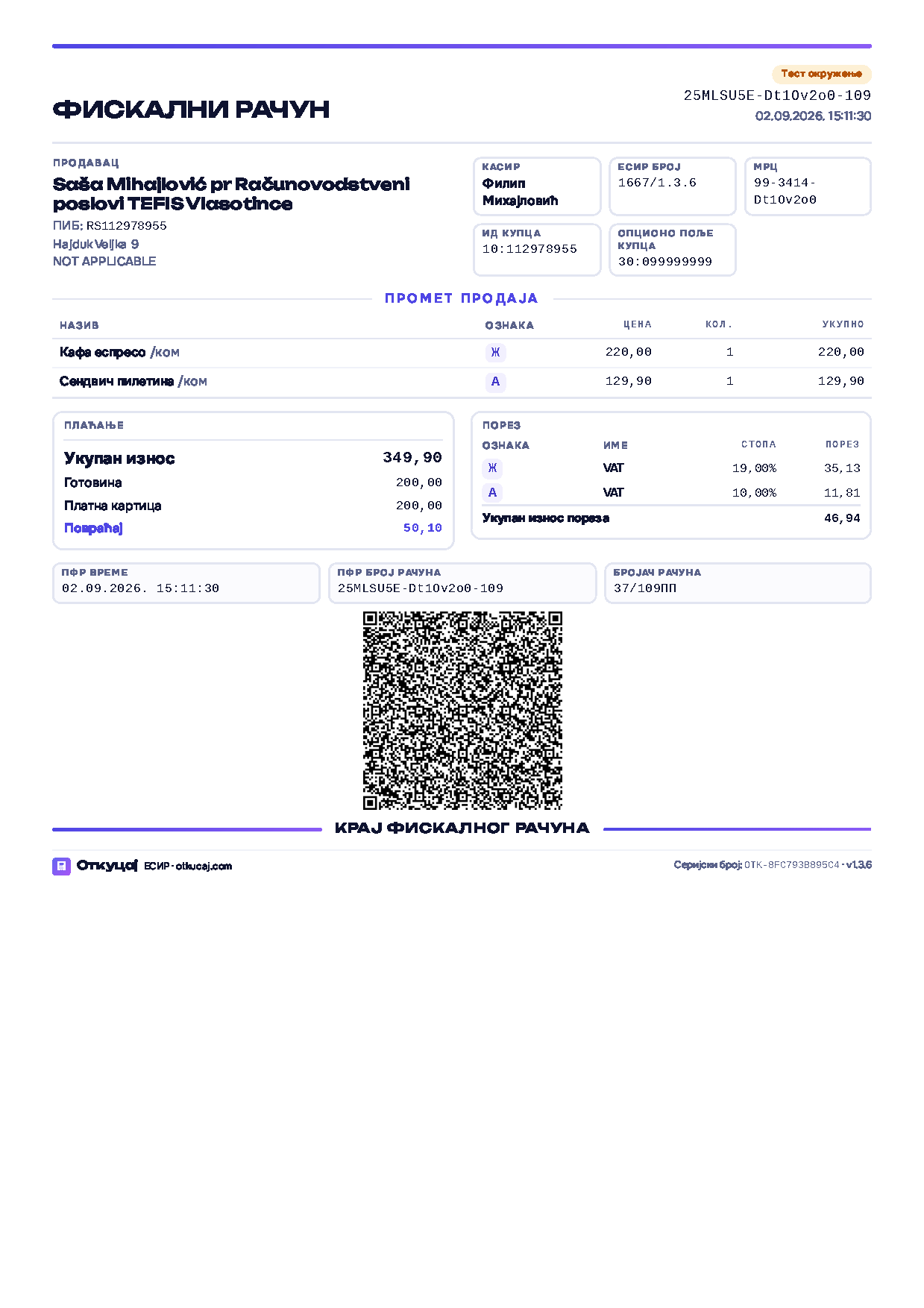
The document opens from the receipt page, with the buttons New layout (1.3.6) A4 and A5, and is downloaded as a PDF: either from the browser print dialog or from the server, at /api/v1/invoices/{uuid}/document?paper=a4doc|a5doc&format=pdf (chapter 20). The sheet size is written into the document's own @page rule, so the printer gets the sheet that was chosen and not the one that happens to be loaded. The Document button without a version mark opens the form that matches the version in the settings: with 1667/1.3.6 the new A4 document, with 1651/1.3.5 the one from the earlier version.
7.Barcode scanner
Otkucaj works with any scanner that presents itself as a keyboard (USB or Bluetooth HID), with nothing to configure in the application.
- The scanner types the barcode into the search field and sends Enter; Otkucaj finds the item by its GTIN and adds it to the basket at once. The same happens when you type a code or PLU by hand and press Enter.
- Quantity prefix: type 2*code or 2xcode (for example 2*1001) and confirm: the line enters the basket with quantity 2. It works with a scanner too: type 2* and then scan.
- The barcode is tied to an item in the catalogue through the GTIN/barcode field (chapter 16). If the code is not found, Otkucaj says so plainly: add the item to the catalogue or use free entry.
To the application a scanner is an ordinary keyboard: it types characters into the search field and presses Enter, and that is all it does. It does not talk to the PFR, it is not part of the flow that issues a receipt, and it can neither delay nor interrupt it. The same holds for any other device connected this way, a scale that sends its output as typed characters, for example.
8.Payment methods
Otkucaj supports all seven payment methods set by art. 6 of the Rulebook on types of fiscal receipts:
| Method | When it is used |
|---|---|
| Cash | Notes and coins. A refund paid out in cash calls for the buyer's signature (chapter 9). |
| Payment card | Charging a card on a terminal. |
| Cheque | Payment by cheque. |
| Bank transfer | Transfers and payment slips; typical for advances and legal entities. |
| Voucher | Vouchers, gift cards and the like. |
| Instant payment | IPS scanning and similar instant payments. |
| Other cashless | Any other cashless payment that does not fall under the above. |
In the request Otkucaj sends to the PFR, every payment method carries its own numeric code from the Technical Guide:
| Code | PaymentType | Name on the receipt |
|---|---|---|
| 0 | Other | Друго безготовинско плаћање (other cashless) |
| 1 | Cash | Готовина (cash) |
| 2 | Card | Платна картица (payment card) |
| 3 | Check | Чек (cheque) |
| 4 | WireTransfer | Пренос на рачун (bank transfer) |
| 5 | Voucher | Ваучер (voucher) |
| 6 | MobileMoney | Инстант плаћање (instant payment) |
8.1 Amount tendered and change
The amount box next to a payment method takes what the buyer actually handed over. Left blank, that method covers the whole receipt. If the amount entered is larger than the "to pay" figure, the difference is change: it appears on the till as the cashier types, prints on the receipt as Повраћај, and is not turnover. The example from the Tehničko uputstvo: the bill is 349,90, the buyer pays 200,00 in cash and 200,00 by card, the change is 50,10.
Less than the total is not allowed: a receipt that is not covered is an error, not change. A refund takes no change, so there the sum must match exactly.
8.2 Split payment
One receipt can have several payment rows. When you enter the first amount, the remainder field automatically shows how much is still uncovered, and a new payment row is filled with that amount.
8.3 The mode under art. 6 para. 2 of the Rulebook
As we understand art. 6 para. 2 of the Rulebook on types of fiscal receipts, a device that records the serving of food and drink for consumption on the spot, or the sale of food and drink in a bakery, must offer only four payment methods, even if other sales also go through it. For such taxpayers Otkucaj has a separate mode in Settings: payment card, cheque and instant payment are disabled, and such payments are entered as cash. Four methods remain in that mode: other cashless (code 0), cash (1), bank transfer (4) and voucher (5). Codes 2, 3 and 6 cannot be entered at the till or through the API: a cashier does not see them, and a request carrying one is refused with an explanation. One installation of Otkucaj runs in exactly one of these two modes; the administrator chooses it and it applies to every cashier.
9.Refunds
A refund is a fiscal receipt that returns turnover: the whole receipt or individual lines. The rules:
- A refund must carry the referent number of the original receipt (the PFR number in the form JID-JID-number).
- A refund must carry a buyer ID.
- Lines are refunded at the price actually charged (including any discount that was given).
| Code | Buyer ID |
|---|---|
| 10: | The buyer's TIN |
| 11: | The buyer's personal number (JMBG) |
| 12: | TIN and JBKJS (users of public funds), in the form 12:TIN:JBKJS |
| 20: | ID card number |
| 23: | Passport number |
| 30: | Foreign passport number |
The code list also contains the other identifications from the Technical Guide; the most common ones are listed here.
How to do it
- Open Receipts, find the original receipt and click Refund. The till opens with the lines and the original's referent number already filled in.
- Delete the lines that are not being returned, or reduce the quantities.
- Enter the buyer ID, for example 20: and the buyer's ID card number.
- Choose how the money is being paid out and click Issue receipt: a Normal Refund receipt is issued.
A refund can also be issued by hand: at the till choose the Refund transaction and type the referent number yourself. Without a referent number and a buyer ID, Otkucaj will not allow the receipt to be issued.
The referent number when there is no original fiscal receipt
The referent number normally names the PFR number of the original receipt, in the form JIDRequest-JIDSignature-Serial. For turnover that arose before the electronic fiscal device was introduced there is no such number, so the Technical Instruction prescribes two fallback forms. Both are typed by hand, into the same referent number field:
- XXXXXXXX-XXXXXXXX-121 for turnover that arose before the electronic fiscal device. The first part, XXXXXXXX-XXXXXXXX, is predefined and is typed exactly as it stands, and 121 is the number under which the invoice is recorded in the taxpayer's invoice records or bookkeeping.
- XXXXXXXX-АБ123456-159 for an invoice from an old fiscal cash register. The first part is predefined, АБ123456 is the IBFM, the identification number of the fiscal module, and 159 is the slip number.
Example
The customer from the example in chapter 6 returns both Coca-Colas. On the original receipt they were charged 324.00 after the 10% discount. The refund reads 2 units at 180.00 with a 10% discount, 324.00 in total, with the original receipt's referent number and the buyer's ID. The bread stays charged and is not part of the refund.
Paying out in cash: the buyer's signature
When money is returned to the buyer in cash, issue a Copy of the refund immediately afterwards (the Copy button on the refund you have just issued). A Copy Refund prints a "Потпис купца" (buyer's signature) space: the buyer signs when they take the money, and the signed copy stays with the seller as proof of payment.
10.Voiding an incorrect receipt
An issued fiscal receipt cannot be changed or deleted. An incorrect receipt (wrong price or quantity, a receipt issued for a sale that did not happen) is voided by refunding your own receipt, entering the seller's own TIN as the buyer ID. When a buyer changes their mind and gets the money back, that is a refund with the buyer's ID (chapter 9):
- Open Receipts, find the incorrect receipt and click Refund. Leave all lines and quantities: the whole receipt is being voided.
- In the buyer ID field enter 10: and your own TIN (for example 10:YOUROWNTIN).
- Choose the same payment method as on the original and click Issue receipt.
- If the customer is still there, issue a new, correct Normal Sale receipt right away.
11.Copy of a receipt
In Otkucaj a copy is issued from a receipt that already exists (the Rulebook allows a copy both at the same time and afterwards) and always carries the referent number of the original receipt; without one it cannot be issued at all. There are two routes to it, depending on where the original is.
The original is in this installation. Open the receipt in the register and click Copy. Otkucaj fills in the original's referent number itself and issues a Copy receipt through the PFR. That is the usual route and nothing has to be retyped.
The original is not in this installation. At the till choose the receipt type Copy, enter the lines, and type the referent number of the original by hand. That is how a copy is issued for a receipt produced on another device or in another program. The prescribed fallback forms of the referent number, for when there is no original fiscal receipt at all, are in chapter 9.
- A copy prints "ОВО НИЈЕ ФИСКАЛНИ РАЧУН" at double letter size and does not count as turnover.
- A Copy of a Refund also prints the "Потпис купца" space (chapter 9).
- Typical uses: the buyer lost the receipt, a duplicate is needed for a complaint or for bookkeeping, or as confirmation that a refund was paid out.
12.Pro-forma and conversion to a fiscal receipt
A pro-forma is a quote: it goes through the PFR as the Pro-forma type, but it is not a fiscal receipt, does not count as turnover and prints "ОВО НИЈЕ ФИСКАЛНИ РАЧУН". It is issued at the till by choosing the Pro-forma type.
When the buyer accepts the quote and pays:
- Open the pro-forma in the receipt register.
- Click Issue fiscal receipt. The till opens with all the pro-forma's lines, and the pro-forma's referent number is filled in automatically.
- Choose the payment method and click Issue receipt: an ordinary Normal Sale receipt is issued.
13.Advances
An advance receipt is issued when the buyer pays before goods or a service are delivered. Otkucaj covers the whole life of an advance: issuing it, further payments, and closing it in one click.
Issuing an advance receipt
- At the till choose the Advance type. The buttons for the prescribed advance lines appear:
| Line | For goods and services at rate |
|---|---|
| 10: Аванс (Ђ) | Ђ, 20% |
| 11: Аванс (Е) | Е, 10% |
| 12: Аванс (Г) | Г, 0% |
| 13: Аванс (А) | А, outside VAT |
- Click the line matching the tax rate of the future delivery. The quantity is always 1, and for the price enter the amount of the advance received.
- If the future delivery contains goods at different rates, add one advance line per rate and split the amount.
- Choose the payment method (typically bank transfer) and issue an Advance Sale receipt.
ESIR time: payments received earlier
If the advance was paid by transfer that you only see on the statement the next day, enter the actual date and time of the payment in the ESIR time field. As we understand art. 11 para. 5 of the Rulebook on types of fiscal receipts, the Advance Sale receipt is then issued no later than the next working day after the payment is received. The receipt will then show both the ESIR time (the actual time of payment) and the PFR time (the time of fiscalization).
Further advances
If the buyer pays a further advance before delivery, issue a new advance receipt the same way, with the referent number of the previous advance receipt (Technical Instruction, 9.1.1). On closing, the total of all advances is refunded, and the reference points at the last advance receipt.
Closing an advance in one click
When the goods are delivered or the service performed, open the last advance receipt in the register and click Close advance. Otkucaj then:
- issues automatically an Advance Refund receipt for the total amount received, with the advance receipt's referent number (this receipt serves the closing and is not handed to the buyer);
- fills the till for the final Normal Sale receipt: the referent number is filled in, and the advertising text automatically carries the number and date of the last advance receipt.
The cashier then adds the goods actually delivered at their full prices, enters the payments and issues the final receipt.
Example
On 01.08.2026 a buyer pays an advance of 5,000.00 by transfer for goods at rate Ђ; the payment is posted on 02.08.2026.
- 02.08.2026: you issue an Advance Sale receipt: line 10: Аванс (Ђ), quantity 1, price 5,000.00, payment by bank transfer, ESIR time 01.08.2026.
- 19.08.2026: goods worth 12,000.00 in total are delivered. On the advance receipt you click Close advance: Otkucaj automatically issues an Advance Refund of 5,000.00 referencing the advance receipt, and opens the till for the final receipt.
- You add goods for 12,000.00 to the basket. Payments: bank transfer 5,000.00 (the advance already received) and, say, cash 7,000.00 that the buyer pays on top. You issue the final Normal Sale receipt; the advertising text carries the number and date of the advance receipt.
14.Training receipts
The Training type is for practising with staff and testing equipment: the receipt goes through the whole flow like a real one (PFR, journal, QR code, printing), but prints "ОВО НИЈЕ ФИСКАЛНИ РАЧУН" at double letter size, does not count as turnover and is excluded from every report. Use Training receipts to test the printer and after every change of PFR mode (chapter 18), before the first real receipt.
15.Receipt register (electronic journal), sending and downloading
15.1 The receipt register and its search
Рачуни in the sidebar opens the electronic journal: every receipt issued on this installation, newest first, with the date, invoice and transaction type, PFR number, invoice counter, cashier and amount. The register always covers at least the last 30 days, and older receipts through the period fields.
Above the list is a box for finding one particular receipt. It searches the whole journal, regardless of the selected period, by:
- the PFR invoice number (e.g. Y9ANWU3Y-Y9ANWU3Y-150) or any part of it;
- the invoice counter (e.g. 124/150ПП);
- the referent number, which brings up an original receipt together with its copy and its refund;
- the buyer ID and the buyer cost centre;
- the cashier;
- the amount;
- the name of an article on the receipt.
Below the search box are filters by period and by invoice type for browsing the journal without a search term. Прикажи opens the full receipt with its journal and QR code.
Receipts issued in the test environment appear only while that environment is selected and are never mixed with production ones (chapter 18.1).
15.2 Handing the receipt to the buyer
On the page of every receipt in the register you can:
- Send by e-mail: enter the buyer's address; Otkucaj sends the receipt as a laid-out document, with the item table, the taxes, the payment, the QR code and the fiscal slip at the bottom. When a receipt is delivered electronically that address replaces the QR code, as a real clickable hyperlink. As we understand art. 13 of the Rulebook on types of fiscal receipts, only a taxpayer who sells exclusively online issues the receipt electronically instead of on paper; at physical premises the buyer always gets a printed receipt, and an electronic copy may be sent in addition, only with the buyer's consent.
- Document: the same receipt as an A4 or A5 document, for an ordinary printer, for an attachment or for the archive. It carries every element of section 16 of the Technical Instruction, in that order, with the QR code inside the receipt frame and the end line below it (chapter 6.2). Nothing in the document replaces the fiscal receipt: it is that receipt, laid out as chapter 6.2 describes. On the document page, Save as PDF opens the print dialog, where "Save as PDF" is chosen as the destination.
- Download .txt: the journal as a text file, for an archive or for sending through other channels.
- Print: on a 58 or 80 mm thermal printer or on A4; only the receipt is printed, without the rest of the screen.
- PDF: in the print dialog choose the destination "Save as PDF" (or "Microsoft Print to PDF") and the receipt is saved as a PDF document.
From version 1.3.6 the Document is the receipt itself in the form the Technical guide prescribes for an ESIR that does not print the journal, on A4 or A5 (chapter 6.2), and the same document is fetched as a PDF straight from the server at /api/v1/invoices/{uuid}/document?paper=a4doc|a5doc&format=pdf. That is the route a courier or a shop uses to print the receipt that travels with the parcel.
16.Items
The Items menu is the catalogue of goods and services. Every field of an item:
| Field | Description |
|---|---|
| Name | The name printed on the receipt. |
| Unit of measure | ком, kg, l, m, hour and so on. |
| Price | The retail price with VAT included. |
| Tax label | Ђ, Е, Г or А. |
| PLU | A short code for typing quickly at the till. |
| GTIN/barcode | The code for the scanner (chapter 7). |
| Category | A group of items; becomes a filter button at the till. |
| Active | An inactive item is not offered at the till but stays on old receipts (a soft delete; items are never permanently deleted). |
A GTIN entered against an item is not only a help to the scanner. It travels to the PFR in the fiscalization request, as part of that line of the receipt, which is how the global trade item number is supported through the whole issuing flow. It is entered as 8 to 14 digits, with no spaces or dashes; any other form is refused when the item is saved.
CSV import and export
The Export CSV and Import CSV buttons are for working with the catalogue in bulk, for example moving it out of an old program or updating prices in Excel. Format: UTF-8, columns separated by semicolons:
plu;name;unit;price;label;gtin;active;category
1001;Кока-кола 0,5 l;ком;180,00;Ђ;8600123456789;1;Пића
A row with a PLU that already exists updates that item; a row with a new PLU adds a new one. The recommended flow: Export CSV, edit in a spreadsheet, Import CSV.
17.Reports
The Reports menu (administrator) offers, for any period you choose:
- daily turnover;
- turnover by tax label;
- turnover by payment method;
- turnover by cashier;
- best-selling items.
The accounting rule: turnover counts fiscalized receipts of the Normal and Advance types; refunds reduce turnover; Training, Pro-forma and Copy receipts are excluded entirely. Only the environment currently in use is counted (chapter 18.1). Every table has an Export CSV button: pick a month and hand the file to your accountant.
18.Settings
Only an administrator sees the Settings menu. The screen is divided into nine sections, in the order you actually set things up: the environment first, because it decides whether the receipt you issue is a real fiscal receipt or a rehearsal, then the security element, then the taxpayer's details, then everything that rarely changes.
| Section | What is set there |
|---|---|
| Environment and PFR | Test or production, mode of operation (demo, L-PFR, V-PFR), ESIR number, addresses and PAC |
| Security element | The certificate, separately for test and for production |
| Taxpayer details | TIN, business name, point of sale, address |
| Printing and payment | Paper and receipt width, allowed payment methods |
| Taxes | Tax labels and rates |
| Users | Accounts and roles |
| API keys | Keys for integrations |
| Notifications | Telegram |
| Activity log | Who did what, and when |
If the warning bar at the top of the screen sends you to one of these sections, it opens by itself and the box you need to fill in is highlighted. You do not have to go looking.
18.1 Environment: test and production
Every company in Otkucaj has two completely separate environments, and one of them is active at any given moment.
| Test environment | Production | |
|---|---|---|
| What it is | The Tax Administration's test system | The live Tax Administration system |
| What it is for | The technical review before approval, and training staff | Real selling |
| Are receipts fiscal | No. They do not count as turnover and do not enter the books | Yes. Every receipt is a fiscal receipt |
| Security element | Its own, a test certificate | Its own, the real certificate |
| PAC and ESIR number | Its own, test values | Its own, real values |
The data of the two environments never mixes. Every receipt remembers which environment issued it, so the receipt list, the dashboard and the reports show only what belongs to the active one. A rehearsal receipt cannot enter real turnover, not even by accident.
On the Environment section you see both cards side by side: which one is active, what mode it is in, which ESIR number it has and whether it has a certificate. Under each is a readiness check, in the form of a list of what is still missing.
Switching to production
The Switch to this button only works once that environment is genuinely ready; until then it is disabled and the reason is written underneath. Production counts as ready when it has:
- L-PFR or V-PFR mode, never demo (demo does not issue fiscal receipts);
- an ESIR number that is a number, that is, the registration number assigned by the Tax Administration;
- for V-PFR: an installed certificate and a PAC;
- for V-PFR: an address that is not a Tax Administration test address;
- a certificate different from the one in the test environment.
Two mistakes the application will not allow
The same certificate in both environments. Test and production must use different security elements. Otkucaj remembers the fingerprint of each certificate and refuses to install the same one in both; if it somehow happens anyway, issuing receipts stops until it is corrected.
Cross-wired addresses. If you enter a Tax Administration test address into production, the receipts would look real and would not be fiscal. If you enter the production address into the test environment, rehearsal receipts would go into the real records. Both entries are refused with an explanation.
18.2 Mode of operation (PFR)
Each environment has its own mode, with a live connection status:
| Mode | Setting | Purpose |
|---|---|---|
| Demo | None; a built-in simulator. | Demonstration, training, testing. Receipts carry the ДЕМО mark. Not allowed in production. |
| L-PFR | The address of the local processor on the shop network. | Selling; works without internet too (chapter 19). |
| V-PFR | The V-PFR service address, a PAC and a certificate. | Selling; requires a permanent internet connection. |
The path from demo to real selling: (1) obtain the security element from the Tax Administration (for a V-PFR the digital certificate, with the PAC you choose when requesting it); (2) in the test environment choose L-PFR or V-PFR, enter the test details and issue a few rehearsal receipts; (3) once everything works, fill in the production environment with the real details and the real certificate; (4) check that the readiness check reports nothing; (5) press Switch to this; (6) issue one Training receipt and check the printing and the QR code; (7) only then issue a real receipt.
18.2.1 Authentication between the ESIR and the PFR
The ESIR and the PFR recognise each other before any receipt data changes hands. The check is not a one-off at first connection: it happens on every call to the PFR.
V-PFR. The connection runs over HTTPS. Otkucaj presents a client certificate, which is the security element in file form (.pfx or .p12) that the Tax Administration issued to that taxpayer; the password that opens the file is stored encrypted (18.3). Every request also carries a header with the PAC. In the same handshake Otkucaj checks the V-PFR's certificate as well, its issuer and its host name; that check is on and no setting can turn it off. If no certificate is installed, if the password does not open the file, or if the PAC is not accepted, the V-PFR refuses the request, no receipt is issued, and the V-PFR's message is shown to the cashier as it arrived.
L-PFR. The connection runs over HTTP, on the local network of the premises, and no client certificate is sent because that connection has no place for one. It is the L-PFR itself that authenticates against the security element, through the smart card reader and the PIN; Otkucaj does not access the card and cannot access it (chapter 1). If the L-PFR is unable to sign a receipt, because the card is not inserted or is asking for a PIN, it says so with a status that Otkucaj shows (chapter 22).
When the check happens. The connection status is checked when the home page opens and when Settings opens, and is shown live on the Environment and PFR section. The same handshake is repeated when tax rates are fetched (18.6) and on every receipt issued. Failed authentication stops work before any damage is done: the Issue receipt button is disabled and the reason is written above the basket, so nobody rings up a basket only to meet the error at the end.
18.3 Security element
The Security element section holds two separate boxes, one for test and one for production. Each takes its own certificate (.pfx or .p12) and its own password. The password is stored encrypted, and the file itself sits outside the web directory and is never served to visitors.
If Otkucaj is installed locally on a Windows computer, instead of uploading the file you can use a certificate that is already installed on that machine: choose the store and enter the certificate's thumbprint. On otkucaj.com that option does not exist and cannot exist, because the server cannot see the certificate store on your computer.
The display beside each certificate states who it was issued to, how long it is valid and its fingerprint. The box changes colour and warns thirty days before expiry, and again once it has expired.
The smart card the Tax Administration issues is used by the L-PFR, not by Otkucaj. Otkucaj does not access the card: it talks to the L-PFR over the network. More in chapter 1.
18.4 Taxpayer details
TIN, business name, name of the point of sale and address: these are printed in the header of every receipt and are the same in both environments. They must match the business-premises details you reported to the Tax Administration. Check them before the first receipt.
The About panel is here too, carrying what identifies this copy of the program: Maker, product name, Software version, the installation's Serial number and the ESIR number. The serial number (of the form OTK-XXXXXXXXXXXX) is assigned automatically on first run, is unique to that installation and does not change across upgrades or after restoring a backup; quote it when reporting a problem. The Install app button (chapter 3) and the Guide button that reopens the first-run guide (chapter 5) are here as well.
18.5 Printing and payment
Paper size (A4, 80 mm roll, 58 mm roll), receipt width in characters (usually 40 for an 80 mm roll and 32 for a 58 mm roll) and the payment mode: the standard one with all seven methods, or the mode under art. 6 para. 2 of the Rulebook, mandatory for food and drink served for consumption on the spot and for bakeries (chapter 8). One installation runs in exactly one payment mode.
That setting describes the paper the journal prints on and is written into the @page rule, so the printer gets the sheet that was chosen and not the one that happens to be loaded. The receipt as a document on A4 and A5 (chapter 6.2) does not depend on this setting: the format is chosen on the receipt page itself and in the API call, because the same shop often prints a receipt on the roll for the customer at the counter and on A5 for the parcel.
18.6 Taxes
An overview of the labels and rates in force: Ђ 20%, Е 10%, Г 0%, А outside VAT. The PFR is the authority, not this table. While an L-PFR or V-PFR is connected, the rates cannot be edited by hand: the fields are locked, and the Fetch rates from the PFR button refreshes them from the source. That way the application cannot calculate tax at a rate somebody typed in.
In demo mode there is no PFR to fetch rates from, so they stay editable and the default Serbian rates apply.
The set of tax labels is not built into the program. Fetching replaces the whole local table with the one the PFR returned, label by label, including the name of the tax category beside each. If the Tax Administration introduces a new label, changes a rate or withdraws an existing label, it appears at the next fetch and prints on the receipt straight away, with no change to the application and no new version. The number of labels is not limited to four: the Tax Administration's test system, for example, has nine.
18.6.1 Rounding
Every monetary amount is kept and shown to two decimals, and quantities to three. Rounding works the usual way: the second decimal goes up if the next digit is 5 or more, and stays as it is if that digit is below 5, so 1.005 becomes 1.01 and 1.004 becomes 1.00. That is how the line amount (quantity times unit price, with the discount if there is one), the total of the receipt, the amount of each payment and the change are produced. Quantities are kept to three decimals because goods are also sold by weight and measure, so 0.375 kg stays 0.375; trailing zeros are not printed on the receipt.
The application does not calculate tax amounts. The PFR calculates them at the rates in force at that moment and returns them in its answer, to two decimals, and Otkucaj shows and prints them exactly as it received them, with no rounding of its own. For the same reason the tax per label and the total tax on the receipt both come from the PFR (chapter 25).
18.7 Users and roles
Opening accounts, assigning a role (administrator or cashier), resetting a password, deactivating a cashier who no longer works there. Accounts that arrived through the registration page are approved here as well: such an account is inactive until an administrator activates it (chapter 4).
This is also where Signed-in devices lives, with the Sign me out everywhere button that ends the "stay signed in" login on every device at once.
18.8 API keys
Generating and revoking keys for integrations (chapter 20). A key is shown only once, when it is generated: save it somewhere safe immediately. Revoke a compromised key at once and generate a new one.
18.9 Telegram notifications
The Notifications section sends a message to your Telegram for every receipt issued: receipt type, amount, payment methods, PFR number, counter and the verification link. It is particularly useful to owners who have connected an online shop through the API (chapter 20), because they see every fiscalized order live, on their phone.
- Bot token: in Telegram open @BotFather, create your bot with the /newbot command and copy the token you are given.
- Chat ID: the number of your conversation; the easiest way to find it is through the @userinfobot bot. It can also be a group ID, if more than one person should see the notifications: in that case add your bot to the group.
- Turn on the switches for receipts issued through the API and/or for receipts issued at the till, depending on which receipts you want to follow.
- Click Send a test message: if the message arrives in Telegram, the setup is correct.
Once Telegram is set up, a notification of every new account registration arrives at the same address (chapter 4).
18.10 Activity log
A chronological record: who issued a receipt and when, who changed items, settings, users and keys, including changes of environment and installation of certificates, with the time and the IP address. The last 200 actions are shown.
19.Working without internet
Otkucaj has three layers of working without a network, and it matters to understand what each one guarantees:
1. The application opens offline (PWA)
The installed application keeps its code and the item catalogue locally on the device. The till therefore opens without internet: items, search, the basket and open receipts all work normally.
2. The local queue
If the connection to the server breaks at the very moment of issuing, the receipt is not lost: it goes into a local queue, visible at the till with the number of receipts waiting. As soon as the connection returns, Otkucaj sends and issues them in order.
Three things happen behind the scenes so that the queue does not cause more damage than the interruption itself:
- No receipt can be issued twice. Every receipt carries its own request key. If the server's answer is lost on the way back, which looks exactly like a request that never arrived, sending it again returns the same receipt instead of issuing a new one. A duplicate fiscal receipt cannot be deleted, only refunded, so this is prevented rather than repaired.
- A refused receipt is not lost in silence. If the server permanently refuses a receipt from the queue, for example because of invalid data, it leaves the queue and the till states the reason and its key. Previously such a receipt vanished without a trace.
- A temporary error does not block the till. If the PFR is momentarily unavailable, the receipt stays in the queue and the attempt is repeated every 30 seconds, not in a loop.
3. Full offline fiscalization: L-PFR
The only way for receipts to be fiscalized without internet is an L-PFR on the same computer (localhost) or on the local network: the local processor signs receipts offline and delivers the data to the Tax Administration as soon as a connection is restored, and no later than 5 days from the day each receipt was issued. A V-PFR, by contrast, needs internet for every issue: for working without internet, use an L-PFR.
20.Integrations: API and WooCommerce
The Otkucaj API v1
The API is for issuing receipts from online shops, ERPs and other systems. Authentication is a Bearer key from Settings; the limit is 240 requests a minute per key. The full specification, with request and response schemas: /api-docs.
| Method and path | Purpose |
|---|---|
| GET /api/v1/status | The state of the system, the environment and the PFR connection. |
| POST /api/v1/invoices | Issue a receipt. |
| GET /api/v1/invoices?from&to&type&page | List receipts, 100 per page. |
| GET /api/v1/invoices/{uuid} | One receipt in detail. |
| GET /api/v1/invoices/{uuid}/journal | The receipt journal (text/plain). |
| GET /api/v1/items · POST /api/v1/items | List and add items. |
| PUT /api/v1/items/{id} · DELETE /api/v1/items/{id} | Update and deactivate an item. |
curl -H "Authorization: Bearer YOUR_KEY" https://otkucaj.com/api/v1/status
Errors come in the form {"error":{"code":"...","message":"..."}}:
| HTTP | code | Meaning |
|---|---|---|
| 401 | unauthorized | The key is missing, wrong or revoked. |
| 422 | validation | Invalid request (for example the payments do not add up, or a referent number is missing). |
| 429 | rate_limited | 240 requests a minute exceeded; try again later. |
| 502 | pfr_error | The PFR refused the request or is unreachable. The receipt was NOT issued. |
To make sure a network interruption cannot turn one sale into two fiscal receipts, send an Idempotency-Key header (or a clientRequestId field) with each issue. Repeating the request with the same key returns the receipt already issued instead of issuing another one.
The WooCommerce plugin
For WordPress shops there is a ready plugin that fiscalizes orders automatically:
- Download otkucaj-fiskalizacija.zip.
- In WordPress admin: Plugins, Add New, Upload Plugin; choose the downloaded zip, click Install, then Activate.
- In the plugin settings enter: the Otkucaj address (https://otkucaj.com), the API key (generated in Otkucaj Settings), the order status that triggers issuing a receipt (the one at which, as we understand art. 6 para. 1 of the Law on Fiscalization, the sale or the receipt of an advance takes place; settle it with your accountant), and the mapping of WooCommerce payment methods to fiscal payment methods.
- Once issued, the plugin writes the PFR receipt number and the verification link into every order, so both the merchant and the buyer can see them. The receipt still has to be delivered to the buyer, for example by e-mail (chapter 15.2).
- If particular products carry a different tax label, set their meta field otkucaj_label (value: Ђ, Е, Г or А).
21.Security and data retention
- All traffic goes over HTTPS only.
- Passwords are stored only as hashes using a modern algorithm; nobody, not even an administrator, can read someone else's password.
- Accounts have roles with different rights (chapter 4); settings and keys are available to administrators only.
- Every action is written to the activity log with the time and the IP address.
- API keys are shown only once and can be revoked at any time.
- Rate limiting protects both signing in and the API from abuse.
- Every form is protected against CSRF attacks.
- The database is archived automatically every day.
22.Troubleshooting
| Problem or message | Cause and remedy |
|---|---|
| "PFR unavailable" / a network error while issuing | The receipt was NOT issued. For an L-PFR: check that the device is on, on the same network, and that the address in Settings is correct. For a V-PFR: check the internet connection. The connection state is shown in Settings, Environment and PFR. When the connection returns, issue it again. |
| PFR status 1300: card not inserted | The security element (smart card) is not in the L-PFR's reader. Insert the card fully and wait for the device to recognise it. |
| PFR status 1500: PIN required | The L-PFR is asking for the security element's PIN (typically after a restart). Enter the PIN on the device, or through its interface, and issue the receipt again. |
| PFR status 2210: security element locked, audit required | The security element is full and locked until its data is submitted to the Tax Administration. Give the L-PFR internet so it can perform the audit, or carry out a local audit following the L-PFR manufacturer's instructions. Once the audit succeeds, issuing continues. |
| PFR status 4005: request being processed | The PFR is still processing the previous request. Wait a few seconds and try again; do not send the same receipt repeatedly, or you may create a duplicate. |
| The queue is not clearing | Check the device's internet connection and the PFR connection status in Settings. Receipts in the queue are sent automatically as soon as the connection works; do not clear the queue. If there is a connection and the queue is stuck, contact support (chapter 24). |
| "The payments do not match the total" | The sum of all payment rows must equal the "to pay" amount. Use the "remainder" field, which offers the outstanding amount by itself. |
| "A refund must have a referent number" / "Buyer ID is required" | The easiest way: open the original receipt and click Refund, then fill in the buyer ID (chapter 9). |
| Printing is skewed, wrapped or "cut off" | In the print dialog set margins to "None", scale to 100% and choose the exact paper width (58 or 80 mm); turn off headers and footers. Check the paper width in the printer driver as well. |
| The QR code will not scan | The QR code must be printed between 40 and 50 mm. Check the print scale (100%), the quality of the roll and the thermal printer's head. |
| The receipt carries the ДЕМО mark | The installation is in demo mode. Once the taxpayer has a security element, the administrator chooses L-PFR or V-PFR in Settings (chapter 18). |
| The API returns 429 rate_limited | 240 requests a minute per key have been exceeded. Slow down and try again after a pause. |
| Telegram notifications are not arriving | Under Settings, Notifications, check the bot token and the chat ID, then click "Send a test message". Check that the switch for the relevant source of receipts (API, till) is on. |
| I cannot sign in, the check keeps spinning | The security check (Cloudflare Turnstile) did not finish loading. Refresh the page: Turnstile loads again. If the checking service is unavailable, signing in goes through without it. |
| Forgotten password | The administrator sets a new one under Settings, Users. |
23.Frequently asked questions
Is Otkucaj approved by the Tax Administration?
It is: record number 1667, version 1.3.6, classification 3 (advanced ESIR), approved by the Tax Administration on 8 September 2026; the earlier version 1.3.5 is listed under number 1651 and stays approved. A new account still starts in the test environment, where receipts are not fiscal. For production you enter your own security element and PAC, the ESIR number 1667, and move to an L-PFR or a V-PFR.
Do I have to install anything?
Not for Otkucaj itself: it runs in a browser. Installing it as an application (PWA) is optional and recommended, because of working without internet and the quicker shortcut. As we understand art. 6 para. 4 of the Law on Fiscalization, a taxpayer who uses a V-PFR must also have an L-PFR, installed separately, in every business premises; the exceptions are retail sales made exclusively online and sales of the taxpayer's own used movable assets (chapter 1.1).
Which printer do I need?
Any thermal printer with a 58 or 80 mm roll and a driver for your system, or an ordinary A4 printer. The printed QR code must be a square of 40 to 50 mm and must not be printed over an image or logo (art. 10 of the Rulebook on types of fiscal receipts).
What happens when the internet goes down?
With a V-PFR no receipt can be issued without internet: the till opens, but the receipt waits in the local queue and is not issued until the connection works. As we understand the Law on Fiscalization, a sale is not completed without a fiscal receipt, and a taxpayer with business premises must have an L-PFR, which signs receipts without internet (chapter 19).
I made a mistake on a receipt. Can I change it?
No, an issued fiscal receipt is not changed. Void it with a refund using your own TIN as the buyer ID, then issue a correct receipt (chapter 10). If the buyer ID was left off, as we understand the Technical Instruction that is possible only immediately after the sale.
How do I move my items over from an old program?
Export them to CSV and import that into Otkucaj (chapter 16). Even for a large catalogue this is a few minutes' work.
Can several cashiers work at the same time?
Yes. Every cashier has their own account, and the cashier's name is on every receipt. One cashier can also keep several receipts open in tabs.
Does Otkucaj work on a phone and a tablet?
Yes, the till screen suits touch and small screens, and the application installs on Android and on iPhone.
How does a buyer verify a receipt?
By scanning the QR code on the receipt, or by opening the verification link. Fiscal receipts are verified in the Tax Administration's system (suf.purs.gov.rs); demo receipts lead to a demo verification and are clearly marked.
What is the ESIR number and where do I get it?
It is the number under which the ESIR is entered in the register of approved fiscalization elements. It is assigned on approval; the administrator enters it in Settings and from then on it is printed on every receipt.
24.Support
Contact: the form at otkucaj.com/kontakt
So that we can help quickly, please state the following when reporting a problem:
- the name of the taxpayer and the point of sale;
- the environment (test or production) and the PFR mode (Demo, L-PFR or V-PFR);
- the exact date and time of the event (for example 19.08.2026 at 14:35);
- the PFR receipt number, if it concerns a particular receipt;
- the exact text of the error message, and ideally a screenshot;
- the steps that led up to the problem;
- the device and browser (for example Windows 11, Chrome; Android, installed app).
Official information about fiscalization: purs.gov.rs. See also the API documentation, the Privacy policy and the Terms of use.
25.Forbidden functions and the limits of the application
There are three things an ESIR must not do, and they have to be stated explicitly in the user documentation. They are listed here one by one, each with an account of how it is enforced in Otkucaj, so that none of them is left as a matter of trust.
Without data from the PFR, no receipt is issued
Otkucaj issues no type of receipt until it has received the necessary data from the PFR it is connected to. The PFR number, the receipt counter, the PFR time, the tax summary and the signature cannot be typed in by hand, cannot be edited, and there is no screen on which that could be done. If the PFR refuses the request or is unreachable, the receipt was not issued: the reason is on screen, there is nothing in the receipt register, nothing enters the reports and there is nothing to print. A receipt waiting in the local queue (chapter 19) is not an issued receipt either: it has not been through the PFR yet, the application marks it as such and does not present it as a receipt. If the installation is not ready to issue at all, because it has no ESIR number or no certificate, the Issue receipt button is disabled before a basket is rung up, and the reasons are listed (18.2.1).
The same rule covers the built-in demo simulator, because it has no PFR either. It cannot produce a fiscal receipt of any type, a Normal Sale included: every document it makes carries the message ОВО НИЈЕ ФИСКАЛНИ РАЧУН at double letter size at both ends, and the line ДЕМО СИМУЛАТОР, БЕЗ ПФР-а immediately below the opening one. Demo is the default state of a fresh installation, so it is the first document anyone can print, and it must not resemble a fiscal receipt even in appearance.
The fiscal part of the receipt is not altered
The text of a fiscal receipt is assembled and signed by the PFR. Otkucaj displays it, prints it, e-mails it and offers it for download character for character as it received it: it deletes nothing from it and changes no value the PFR returned. What the application adds of its own has a prescribed place: the Повраћај row goes into the payment block, right after the last payment line; the QR code and the buyer's signature line on a Copy Refund stand inside the receipt frame, between the PFR metadata and the end line; only the advertising text stands below the КРАЈ ФИСКАЛНОГ РАЧУНА line. The only processing of the text itself is wrapping a line that is longer than the roll, where not one character is added or removed and the break falls on a space the line already had. Downloading the journal as .txt gives the stored text with no such change at all, because the journal is the record of the receipt.
The issuer's details in the header are not overwritten
The five header lines (TIN, taxpayer, point of sale, address and town) are assembled by the PFR during fiscalization and returned to the ESIR in its answer. Otkucaj prints them as it received them and does not replace them with the values in its own settings, not even when the two differ: the settings describe the taxpayer inside the application, while the header is what the Tax Administration registered against the security element and what the PFR confirmed. Each receipt also stores the taxpayer's details as the PFR returned them, so a document rendered months later shows the taxpayer as at the moment of issue, not as the settings read that day.
The same rule is behind what chapter 18.6 says: the tax rates applied to a receipt are only ever the rates returned by the L-PFR or the V-PFR. The application does not calculate them, does not keep a version of its own, and does not allow them to be typed in while a PFR is connected.
The same rule on the document form
The receipt as a document on A4 and A5 (chapter 6.2) obeys the same rule by another route. There no journal is carried over; the receipt is composed by the element map the Technical guide prescribes for an ESIR without a journal: every value comes from the fiscalisation request and from the PFR response, no amount is recalculated, no element of section 16 is left out and none is altered. The arrangement of those elements is prescribed, and ours is only what the rules explicitly leave to the ESIR: the look, the typeface and the space above and below the fiscal receipt. Below the closing line, on that form too, stand only the advertising field and a line with the product name and serial number, which is not part of the fiscal receipt.
26.Index: the Tax Administration questionnaire, item by item
The table below ties every item of sections 9 to 16 of the questionnaire for the administrative and technical review of an ESIR's functionality to the place in this manual where that item is described. Every reference in the third column is a link to that chapter.
| Item | Question | Where in the manual |
|---|---|---|
| 9.П1 | The ESIR issues no type of receipt without the necessary data from the PFR | 25. Forbidden functions, 6. Issuing a receipt, 19. Working without internet |
| 9.П2 | The ESIR neither omits nor changes any mandatory receipt data received from the PFR | 25. Forbidden functions, 15.2 Handing the receipt over |
| 9.П3 | The ESIR neither omits nor changes the issuer's details in the header received from the PFR | 25. Forbidden functions, 6.1 Elements of the receipt, 6.2 The receipt as a document |
| 10.П1 | Accepts commands from the ESIR operator | 5. The till screen, 6. Issuing a receipt |
| 10.П2 | The ESIR and the L-PFR or V-PFR authenticate each other | 18.2.1 Authentication |
| 10.П3 | Removing selected lines from a receipt before it is issued | 5. The till screen, 9. Refunds |
| 10.П4 | Applying a discount to a selected line | 5. The till screen |
| 10.П5 | Hardware ESIR: a visible label with the product details. Not applicable, Otkucaj is a software product | 1. About the program |
| 10.П6 | Software ESIR: easily accessible maker, serial number and software version | 18.4 Taxpayer details, the About panel |
| 10.П7 | Registers every payment method, and has the mode under art. 6 para. 2 of the Rulebook | 8. Payment methods, 18.5 Printing and payment |
| 10.П8 | Multiple, split payment of one receipt | 8. Payment methods |
| 10.П9 | Connecting to other devices without disturbing the PFR | 7. Barcode scanner |
| 10.П10 | Issues a fiscal receipt in electronic form and prints it | 6. Issuing a receipt, 15.2 Handing the receipt over |
| 10.П11 | Supports the global trade item number (GTIN) | 16. Items, 7. Barcode scanner, 6.1 Elements of the receipt, 6.2 The receipt as a document |
| 10.П12 | A refund and a copy require a referent number | 9. Refunds, 11. Copy of a receipt |
| 10.П13 | A sale receipt arising from an advance or a pro-forma supports a referent number | 12. Pro-forma, 13. Advances |
| 10.П14 | Communicates with an L-PFR over the HTTP protocol | 1.1 What Otkucaj is, 18.2 Mode of operation, 3.4 Two ways to run |
| 10.П15 | Communicates with a V-PFR over the HTTPS protocol | 1.1 What Otkucaj is, 18.2 Mode of operation, 18.2.1 Authentication |
| 10.П16 | A list of every receipt issued, searchable, for at least the last 30 days | 15.1 The receipt register |
| 10.П17 | Entering transaction data through a file. Not supported; the API does the same job | 20. Integrations |
| 11.П1 | A new product or service is entered and configured by the user | 16. Items |
| 11.П2 | The user chooses the quantity while the receipt is being issued | 5. The till screen, 6. Issuing a receipt |
| 11.П3 | The user can change the price of a product or service | 5. The till screen, 16. Items |
| 11.П4 | Rounding to at least two decimals when a price is queried | 18.6.1 Rounding |
| 11.П5 | Items can be chosen by name or by scanning a GTIN | 5. The till screen, 7. Barcode scanner |
| 11.П6 | Import and export of the list of products and services | 16. Items |
| 12.П1 | Fetches the tax rates from the configuration parameters of the PFR or SUF | 18.6 Taxes |
| 12.П2 | Prints the tax label with the type of tax and the tax value | 6.1 Elements of the receipt, 6.2 The receipt as a document, row 16.П9; 18.6 Taxes |
| 12.П3 | Supports the number of tax labels in force, with room to extend | 18.6 Taxes |
| 12.П4 | Shows the tax rates on request | 18.6 Taxes |
| 12.П5 | Rounds the tax value to at least two decimals | 18.6.1 Rounding |
| 12.П6 | Never uses rates other than those obtained from the L-PFR or V-PFR | 18.6 Taxes, 25. Forbidden functions |
| 13.П1 | A paper roll up to 57 mm wide. Not supported | 3. Requirements and installation |
| 13.П2 | A paper roll from 57 mm to 80 mm. The 58 mm and 80 mm rolls are supported | 3. Requirements and installation, 18.5 Printing and payment |
| 13.П3 | A4 format. Supported | 3. Requirements and installation, 15.2 Handing the receipt over |
| 13.П4 | Another solution. The journal as .txt, an A4 document and PDF | 15.2 Handing the receipt over |
| 14.П1 | An external printer connected to the ESIR. Supported | 3. Requirements and installation, 22. Troubleshooting |
| 14.П2 | A printer built into the ESIR. Not applicable, Otkucaj is a software product | 1. About the program |
| 14.П3 | Another solution. Printing to PDF from the browser's print dialog | 15.2 Handing the receipt over |
| 15.П1 | Delivery in paper form | 6. Issuing a receipt, 15.2 Handing the receipt over |
| 15.П2 | Delivery in electronic form, by e-mail | 15.2 Handing the receipt over |
| 15.П3 | Another solution. The journal as .txt, an A4 document, the PFR number and the verification link written into the order | 15.2 Handing the receipt over, 20. Integrations |
| 16.П1 | The receipt opens with the title line marking the start of the fiscal part | 6.1 Elements of the receipt, 6.2 The receipt as a document, row 16.П1 |
| 16.П2 | The header with the issuer's details, assembled by the PFR | 6.1 Elements of the receipt, 6.2 The receipt as a document, row 16.П2; 25. Forbidden functions |
| 16.П3 | Identification of the cashier | 6.1 Elements of the receipt, 6.2 The receipt as a document, row 16.П3; 4. Signing in and roles |
| 16.П4 | Buyer ID and the buyer cost centre | 6.1 Elements of the receipt, 6.2 The receipt as a document, row 16.П4; 5. The till screen, 9. Refunds |
| 16.П5 | The ESIR number on every receipt type, and the ESIR time for an advance sale | 6.1 Elements of the receipt, 6.2 The receipt as a document, row 16.П5; 13. Advances, 18.4 Taxpayer details |
| 16.П6 | The referent number in the form JIDRequest-JIDSignature-Serial | 6.1 Elements of the receipt, 6.2 The receipt as a document, row 16.П6; 9. Refunds |
| 16.П7 | The receipt type and the transaction type | 6.1 Elements of the receipt, 6.2 The receipt as a document, row 16.П7; 1. About the program |
| 16.П8 | The item list with name, unit of measure, label, price, quantity and amount | 6.1 Elements of the receipt, 6.2 The receipt as a document, row 16.П8; 16. Items |
| 16.П9 | Total, change, tax per label, total tax and the payment methods | 6.1 Elements of the receipt, 6.2 The receipt as a document, row 16.П9; 8.1 Amount tendered and change |
| 16.П10 | Copy, Pro-forma and Training carry the "not a fiscal receipt" message at double size | 6.1 Elements of the receipt, 6.2 The receipt as a document, row 16.П10; 11. Copy, 12. Pro-forma, 14. Training |
| 16.П11 | The PFR metadata: PFR time, PFR receipt number and receipt counter | 6.1 Elements of the receipt, 6.2 The receipt as a document, row 16.П11; 15.1 The receipt register |
| 16.П12 | A scannable QR code, 40 to 50 mm, replaced by a hyperlink on electronic delivery | 6.1 Elements of the receipt, 6.2 The receipt as a document, row 16.П12; 3. Requirements and installation, 15.2 Handing the receipt over |
| 16.П13 | The receipt ends with the title line marking the end of the fiscal part | 6.1 Elements of the receipt, 6.2 The receipt as a document, row 16.П13; 25. Forbidden functions |
| 16.П14 | An advertising field below the title line marking the end of the fiscal receipt | 6.1 Elements of the receipt, 6.2 The receipt as a document, row 16.П14; 5. The till screen |